Answer a Request
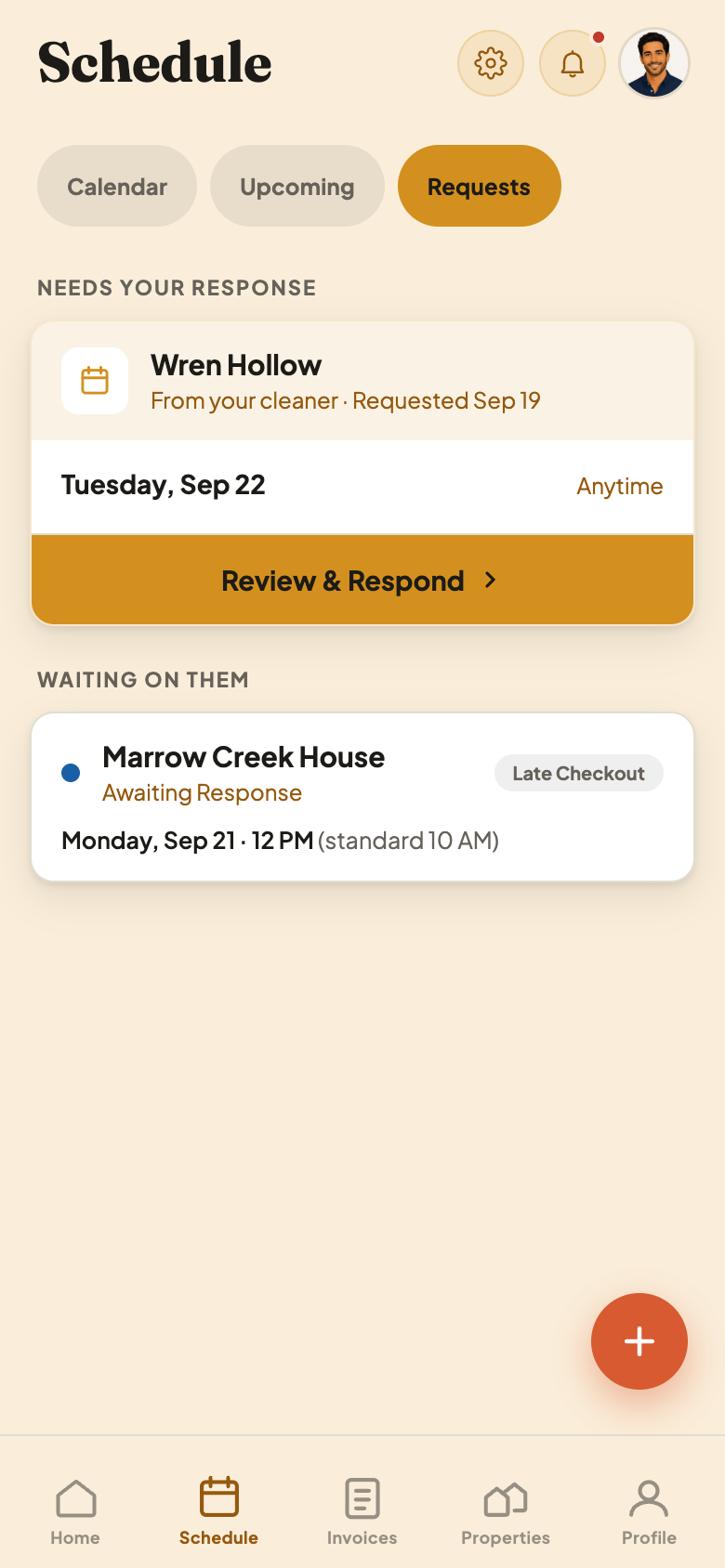
Your Requests tab has two kinds of cards: cleaning dates your cleaner is asking you to confirm, and check-in or checkout times you asked your cleaner to change.
Open the Requests Tab
Go to the Schedule tab and tap Requests.
Answer a Cleaning Date
This is for a regular home. Your cleaner can ask for a specific date, and it's listed under Needs Your Response until you answer it.
A Date From Your Cleaner
- 1The property this date is for.
- 2The date, and any time window, your cleaner asked for.
Review & Respond
Tap Review & Respond. Each date starts checked off as agreed. Tap a date if you need to say you can't do it, or suggest a different one. Then tap the button at the bottom to send your answer.
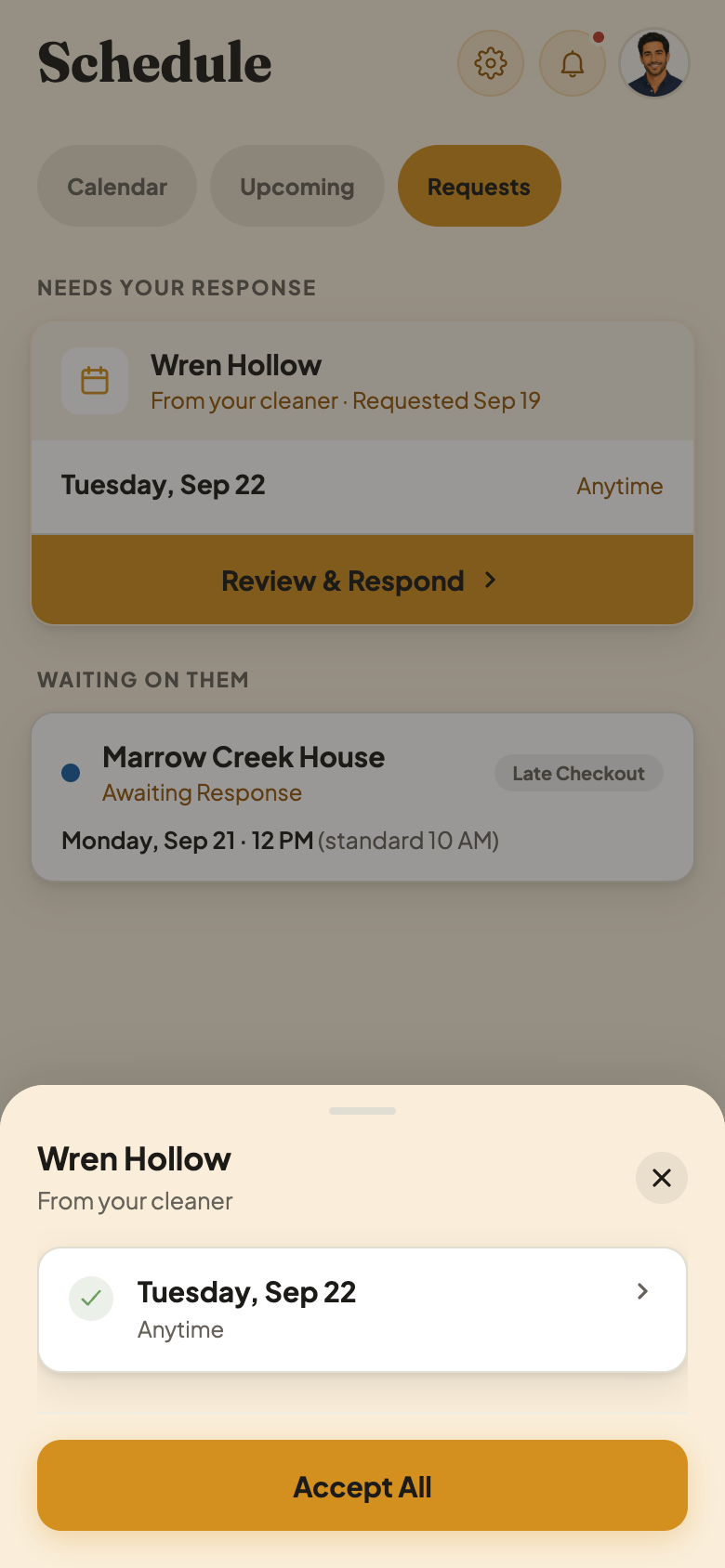
A date that's already passed can't be confirmed this way. It'll show up as one you can't do.
A Time Request You Sent
This is for a short-term rental. If you ask for an early check-in or late checkout on a day your cleaner is already booked to clean, it becomes a request. You'll see it under Waiting on Them until your cleaner answers.
A Time You Asked to Change
- 1Waiting for your cleaner to respond. There's nothing for you to do until they do.
Any fee for a time change only applies if your cleaner has priced early check-in or late checkout on their Rate Sheet. If it isn't priced, accepting adds nothing.