Set Your Billing Details
Your name and address show up on every invoice your cleaner submits to you. Set them once, in your Profile.
Who Is This For?
Hosts
On your phone or computer
01
Open Billing Details
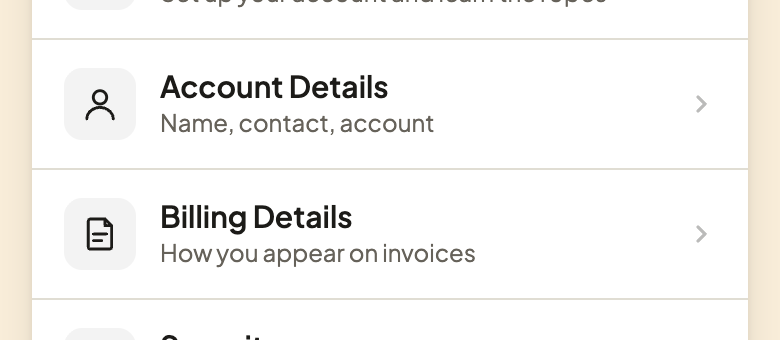
Go to your Profile tab, then tap Billing Details.
02
Fill In Your Name and Address
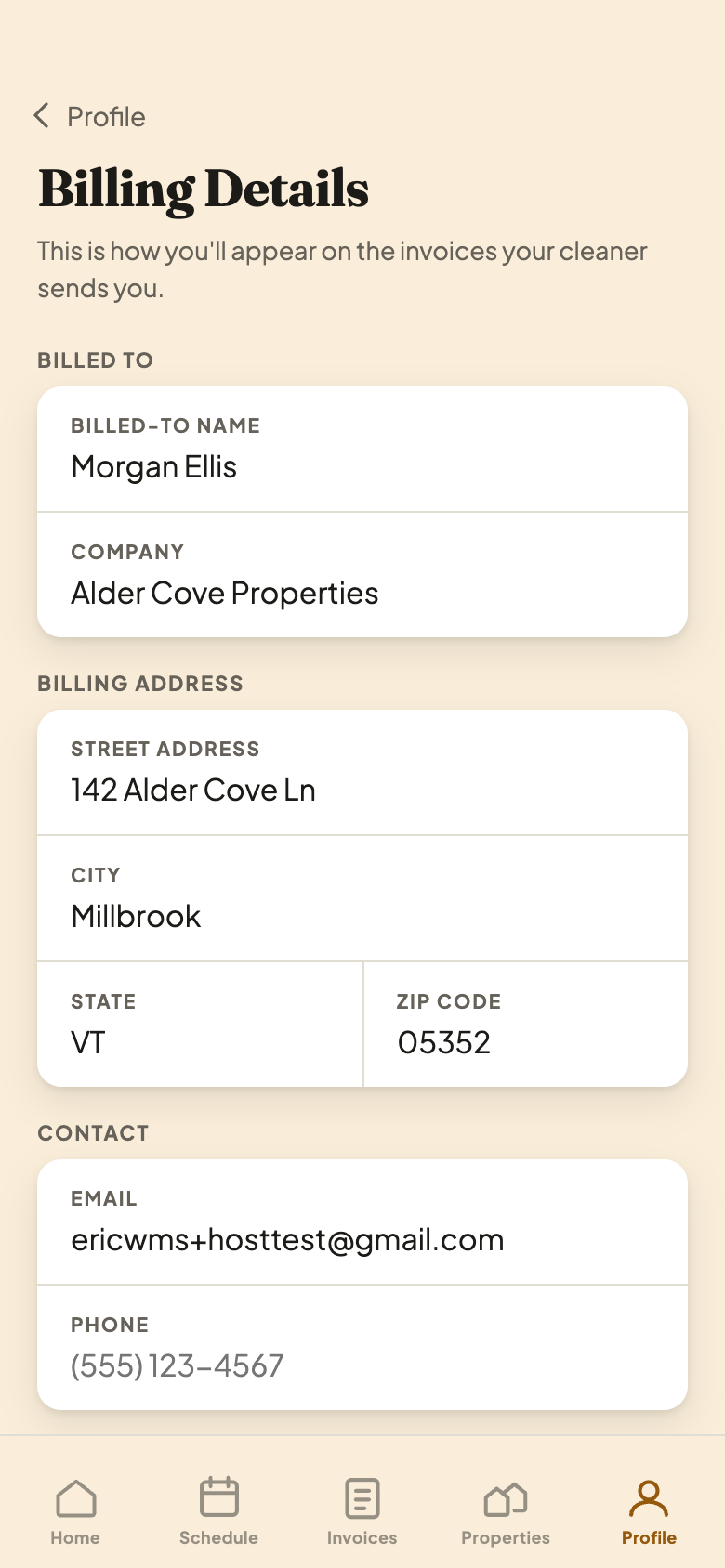
This is how you'll appear on the invoices your cleaner submits to you.
A Closer Look
What Goes Where
- 1Billed To. Your name and company, the way your cleaner should address the invoice to you.
- 2Billing Address. Your street, city, state, and ZIP code.
- 3Contact. An email and phone number for the invoice.
There's no Save button. Each field saves the moment you tap out of it.
If you were invited by your cleaner and don't own the property account, there's nothing to fill in here yet.
03
It's on Every Invoice, Old and New
Your cleaner's invoice, and the PDF they can download, print this as who the invoice is billed to. Change it any time. It updates on every invoice, even ones your cleaner already submitted, not just new ones.
Good to Know
Set this before your cleaner's first invoice, so your name and address are right from the start.