Invite and Assign Your Cleaner
Invite your cleaner by email, then assign them to each property so their cleanings and invoices go to the right house.
Invite Your Cleaner
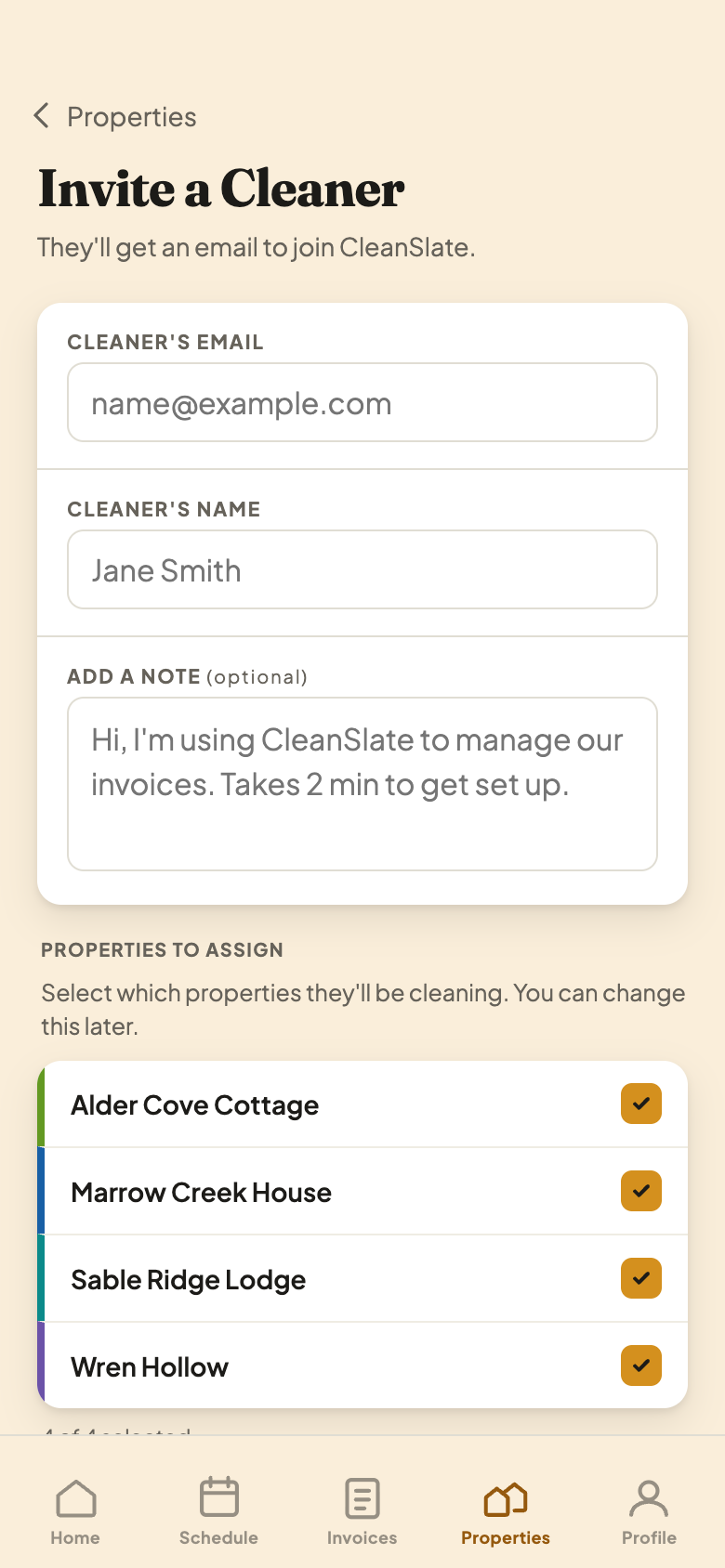
Go to the Properties tab and tap Invite Cleaner. Enter their email and name, then tap Send Invite.
Pick Their Properties
- 1Check off each house. These are the properties this cleaner will work on.
- 2You can change this later from the property page.
They Accept the Invite
Your cleaner gets an email. When they open it and accept, they join your account as a cleaner. There's nothing else for them to set up first.
Assign Them to Each Property
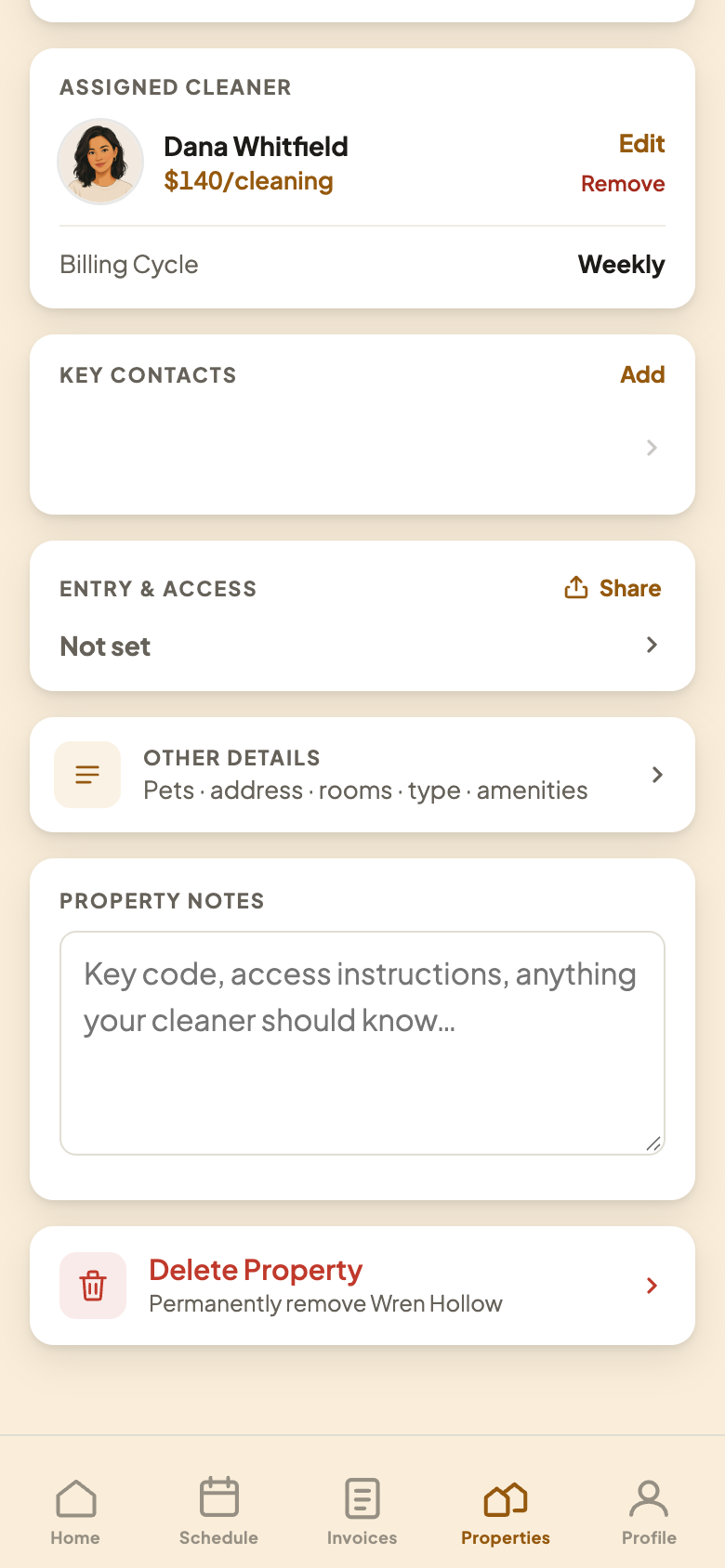
If you didn't check off properties at invite time, or you add a new one later, open that property and look for Assigned Cleaner. Tap Assign Cleaner (or Edit if someone's already assigned), choose your cleaner, and save. Their cleanings and invoices for that house now go to them.
Change It Anytime
- 1Who's assigned, and what they charge. Your cleaner sets their own rate. You can adjust it here if you need to.
- 2Edit swaps in a different cleaner or changes the rate. Remove unassigns them from this property.
A cleaner only sees the properties they're assigned to. If a house is missing from their schedule, check that it's assigned to them here.