Approve and Pay an Invoice
Review what your cleaner submitted, approve it, then record how you paid. The invoice is marked Paid and filed for you.
Open the Invoice
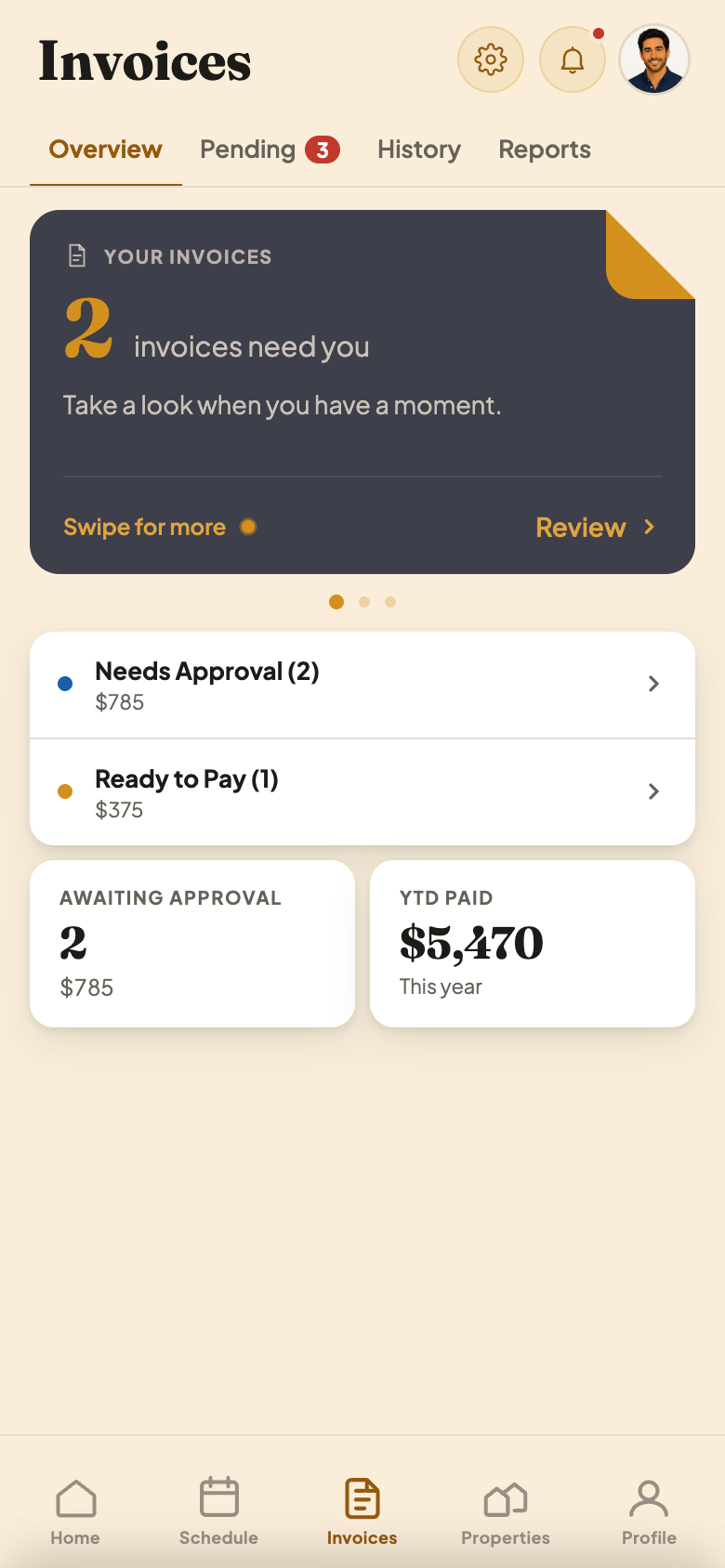
Go to the Invoices tab and tap Needs Approval. You can also tap Review on Home.
Check the Cleanings
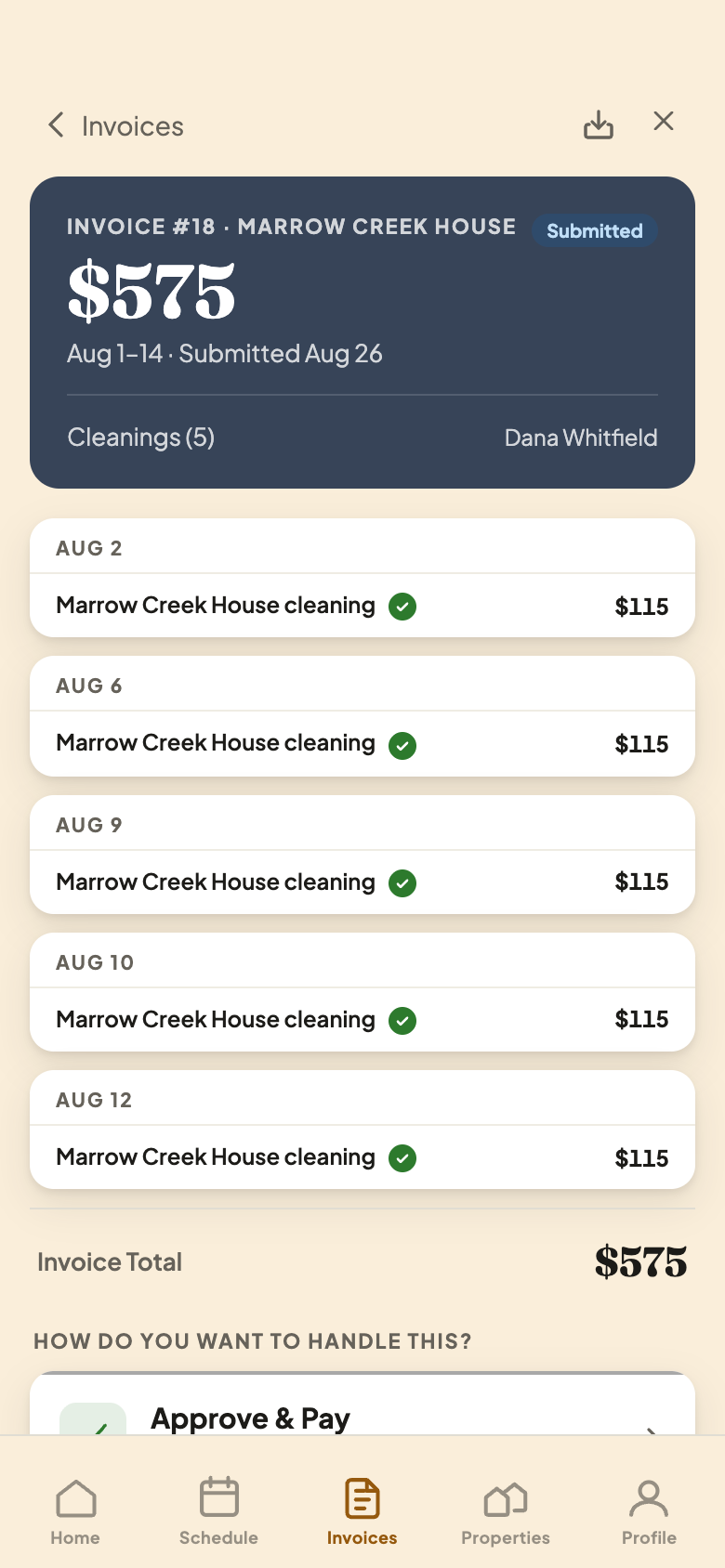
Every line is a cleaning or an extra. A green check means the cleaning matches a guest checkout on your calendar. Cleanings at a regular home don't get a check, because there's no guest calendar to match.
Choose What to Do
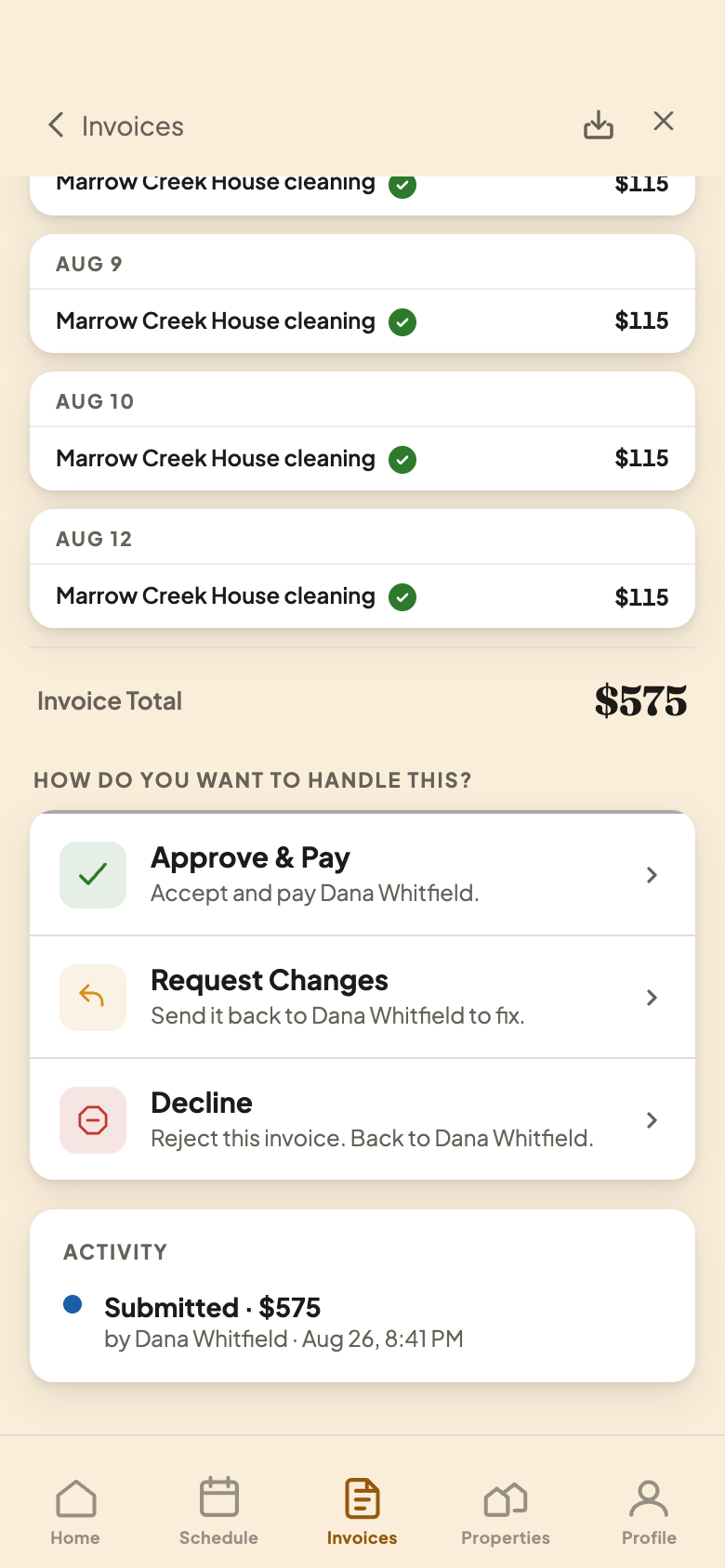
At the bottom of the invoice you have three choices.
Your Three Choices
- 1Approve & Pay. The invoice looks right. Next you record how you paid.
- 2Request Changes. Something's off. It goes back to your cleaner with your note, and they submit a fixed one.
- 3Decline. You won't pay this invoice. It goes back to your cleaner.
Record How You Paid
Pay your cleaner the way you already do, like Venmo or Zelle. Then pick that method here, and the invoice is marked Paid. Your cleaner is told right away.
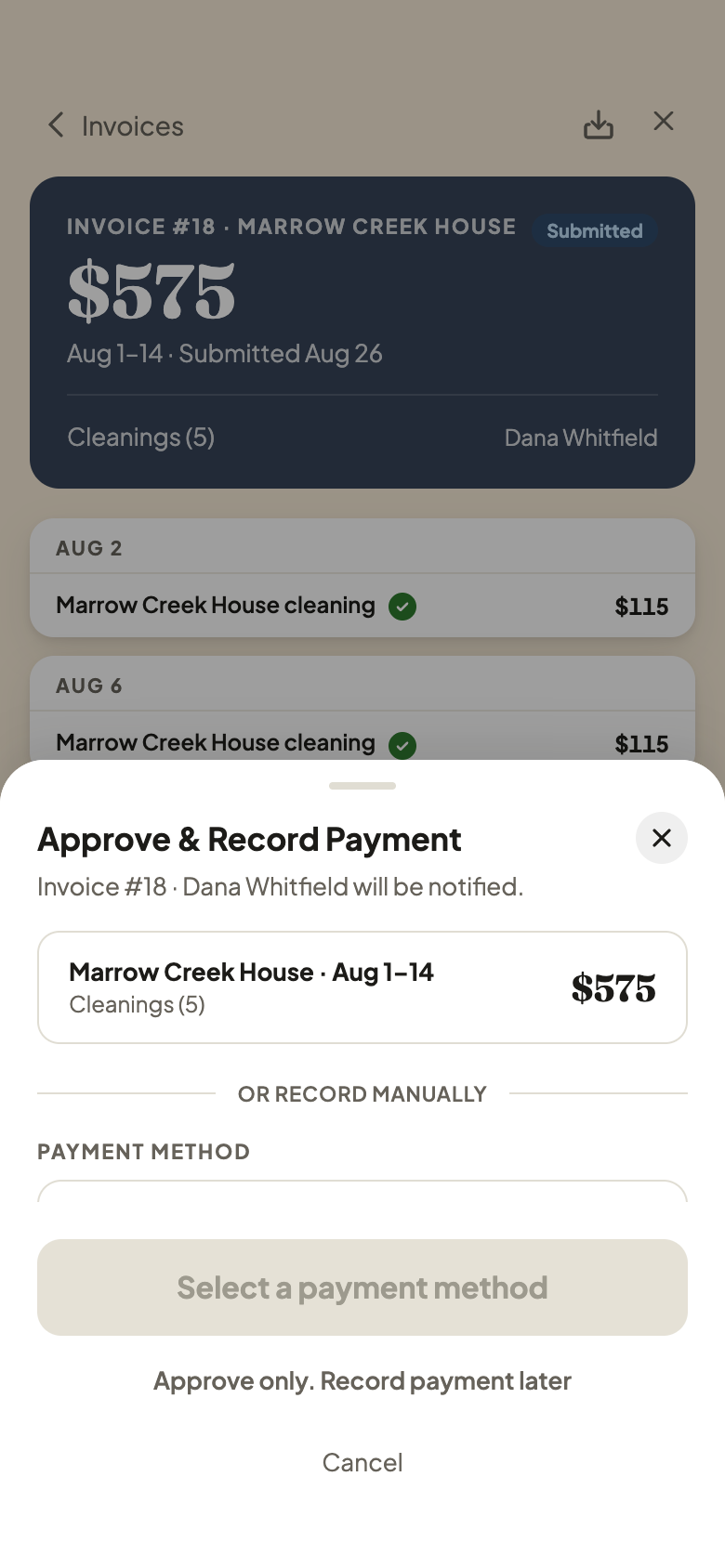
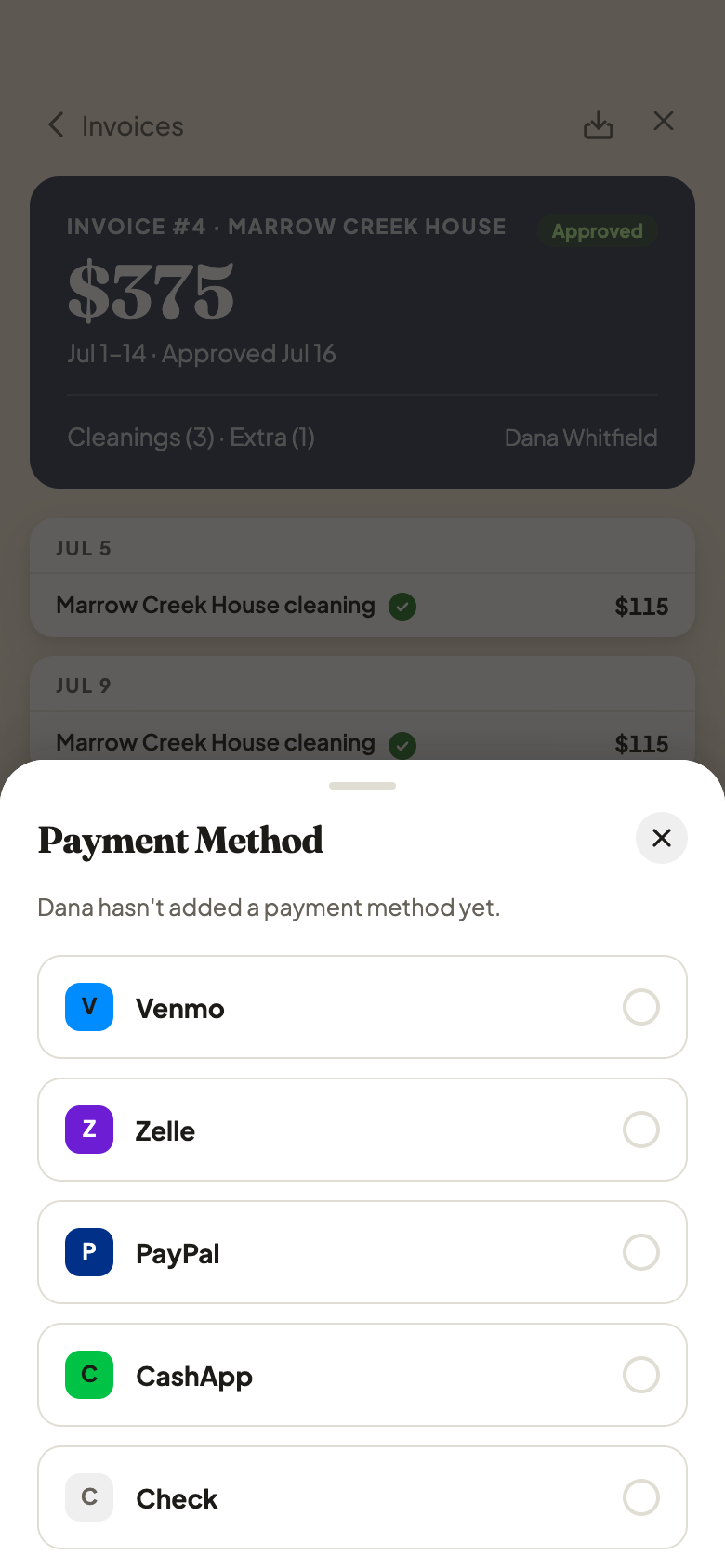
Not paid yet? Tap Approve only. Record payment later. The invoice waits under Ready to Pay.
CleanSlate doesn't move the money. You pay your cleaner your usual way, then mark it here so the invoice updates.