Add Your iCal Link to CleanSlate
There are a few ways to add (or update) an iCal link. The thing to know: a property and its iCal link go hand in hand. Every link belongs to a property, so you add it to a property you already have, or while you add a new one.
During Onboarding
When you first set up CleanSlate, you'll be asked for your iCal link, so have it handy. Don't have it? You can email your host or homeowner during setup and they'll add it for you. Here's what you'll see.
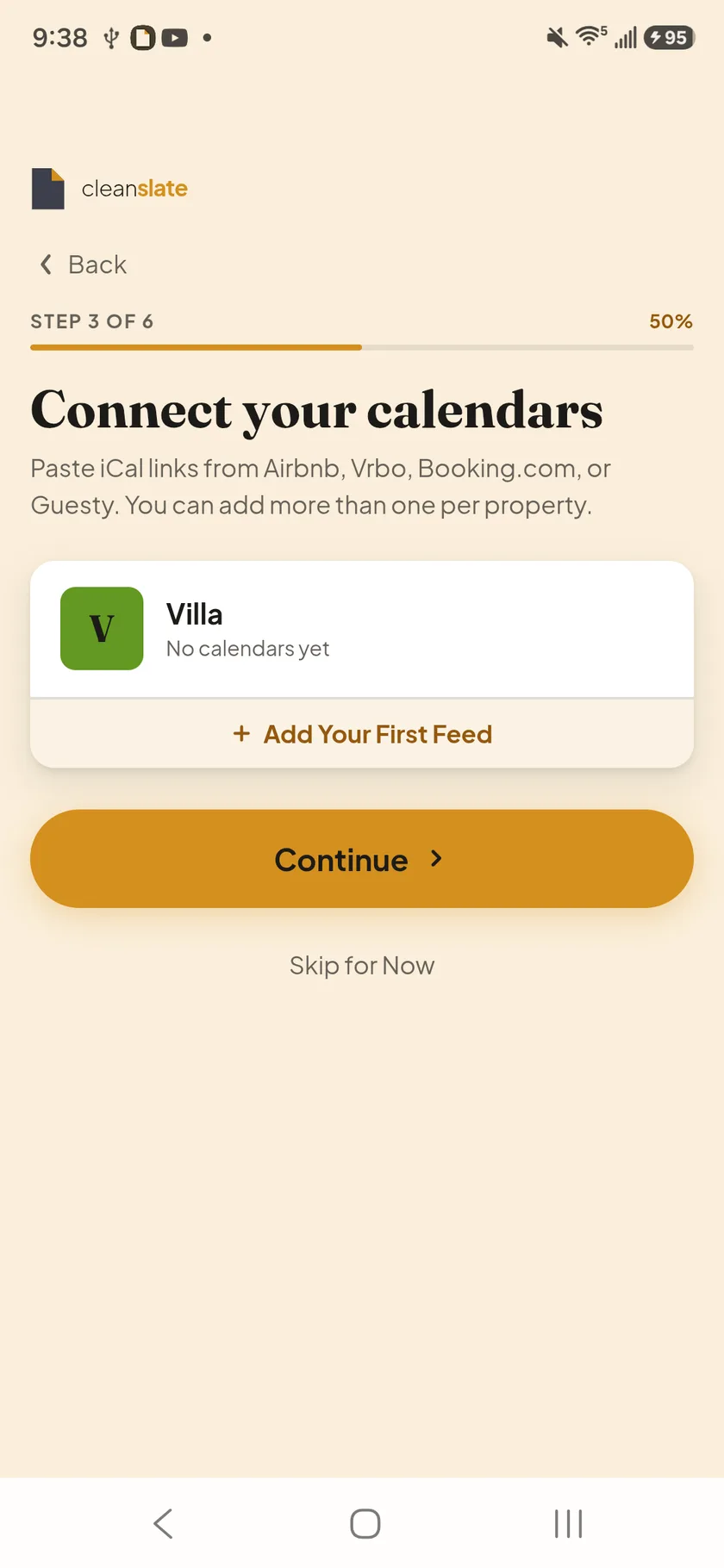
Hosts: on Connect your calendars, tap Add Your First Feed and paste your iCal link.
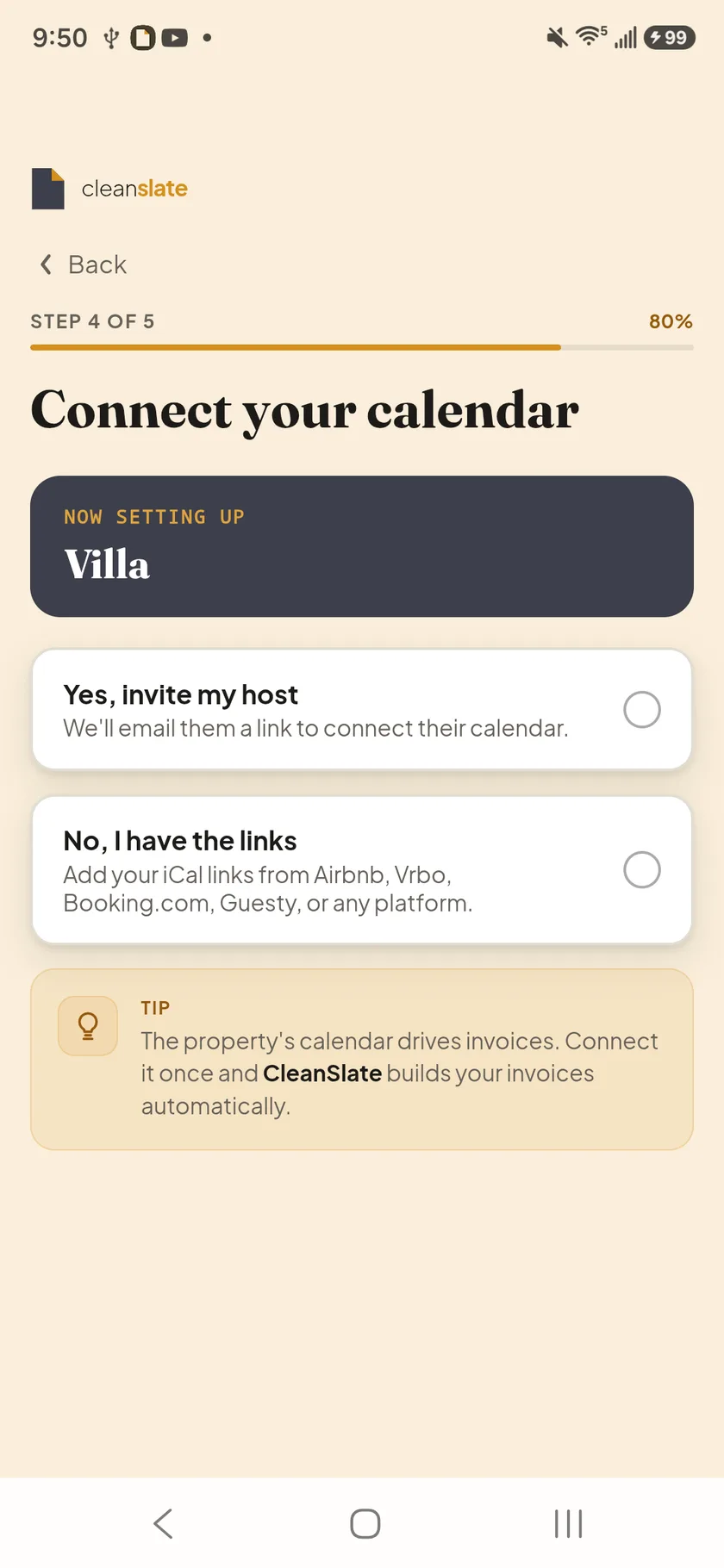
Cleaners: on Connect your calendar, choose No, I have the links to paste them, or Yes, invite my host and we'll email your host.
See all 2 steps
- Hosts: on Connect your calendars, tap Add Your First Feed and paste your iCal link.
- Cleaners: on Connect your calendar, choose No, I have the links to paste them, or Yes, invite my host and we'll email your host.
Adding a New Property
Already have a CleanSlate account? Add the link while you add the property.
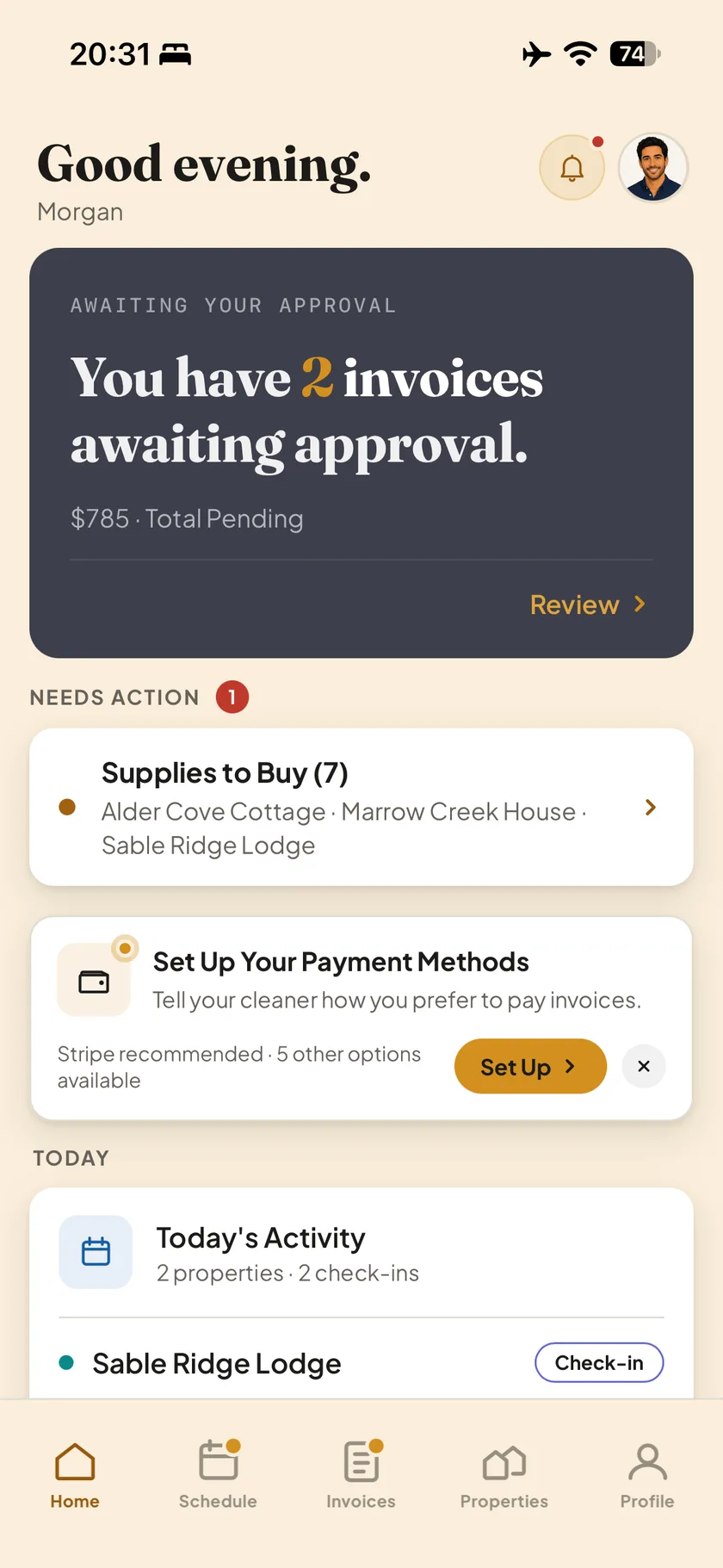
Tap Properties on the bottom navigation.
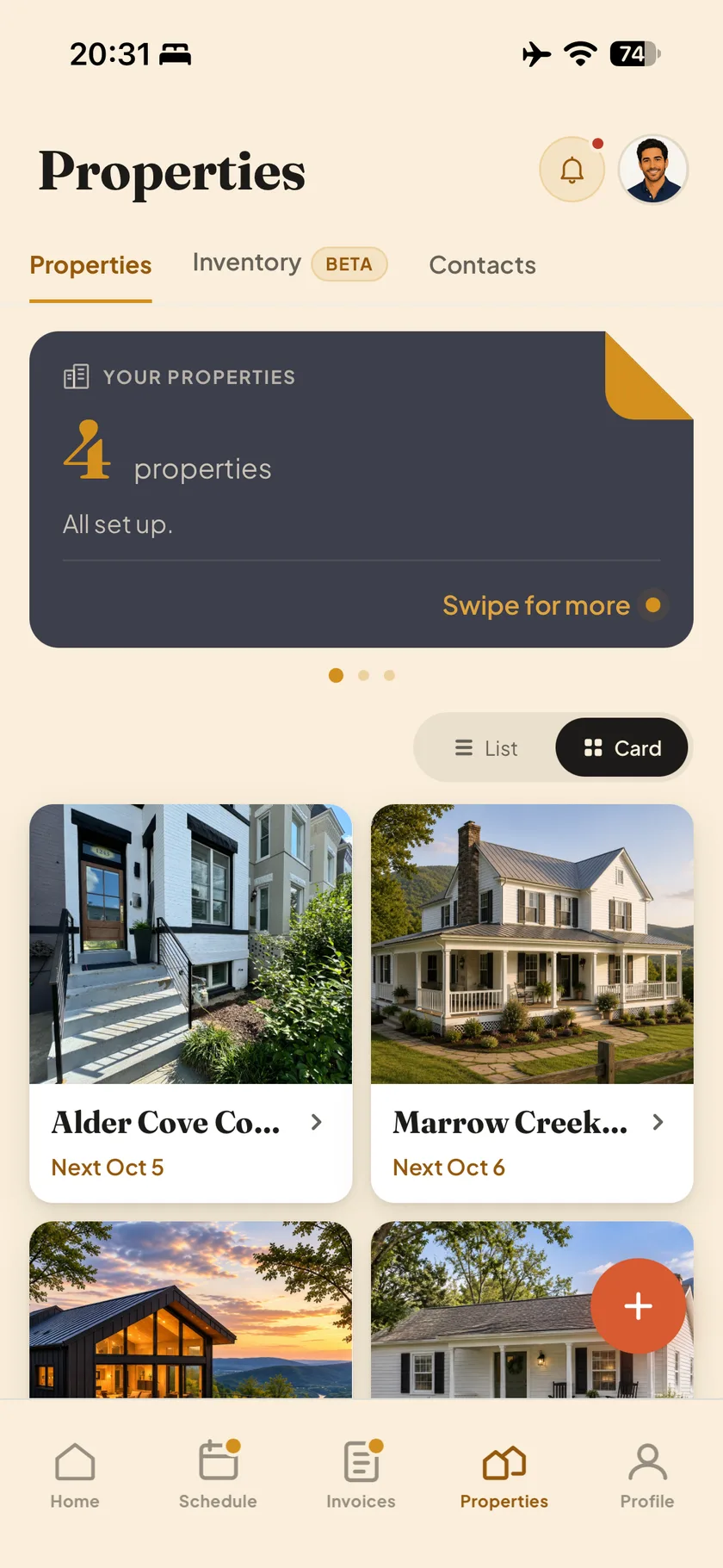
Tap the coral + at the bottom right to add a new property.
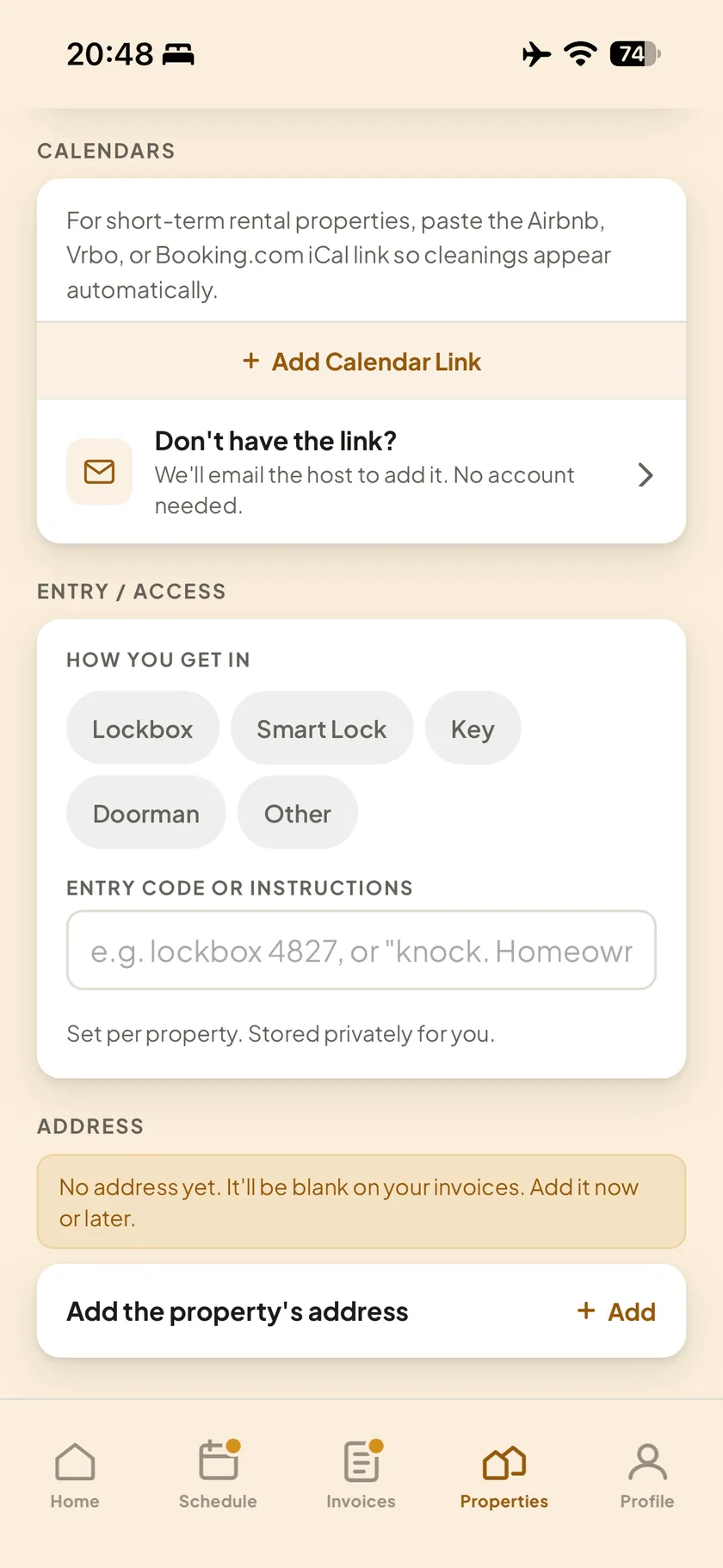
Fill in the property details. Under Calendars, tap Add Calendar Link and paste your link. No link? Tap Don't have the link? and we'll email your host.
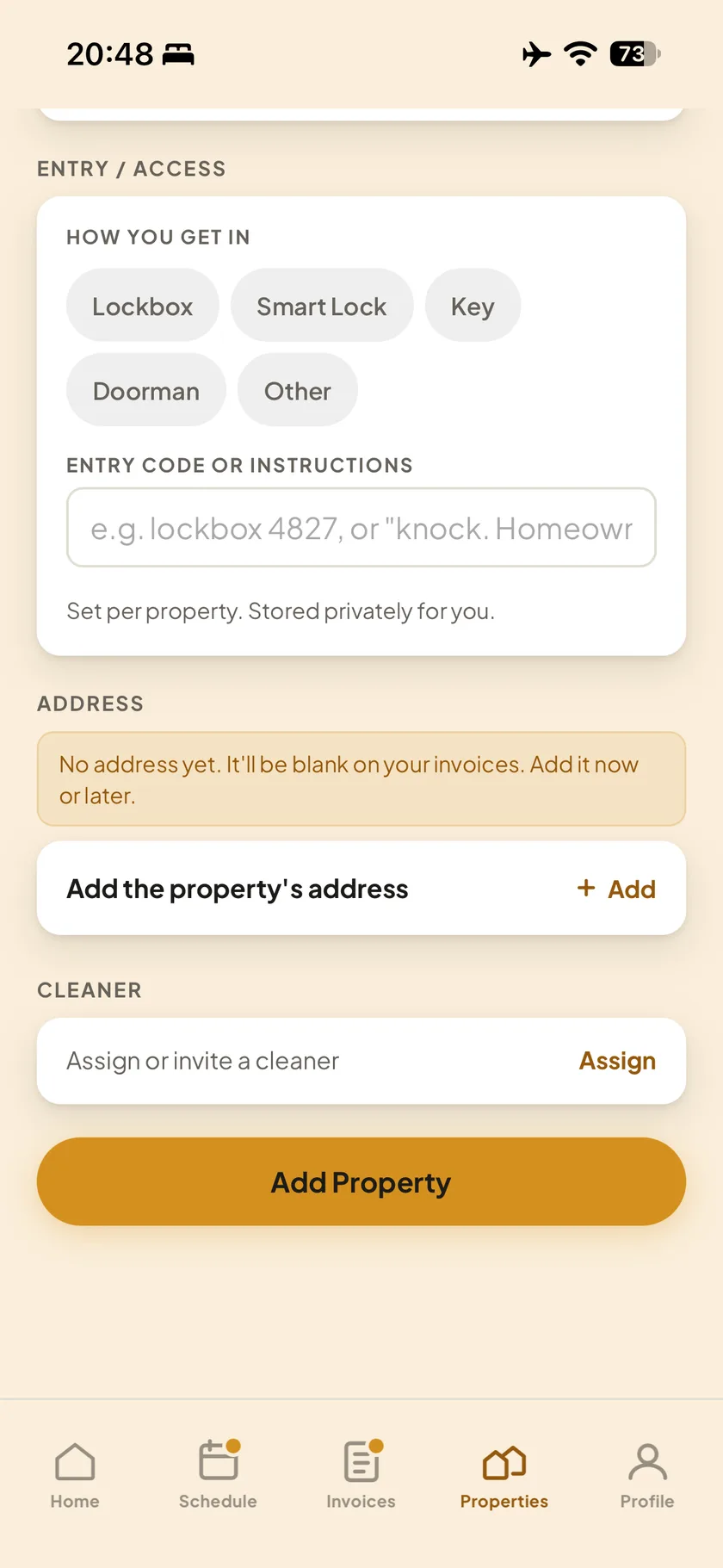
Scroll all the way to the bottom and tap Add Property. That's it.
See all 4 steps
- Tap Properties on the bottom navigation.
- Tap the coral + at the bottom right to add a new property.
- Fill in the property details. Under Calendars, tap Add Calendar Link and paste your link. No link? Tap Don't have the link? and we'll email your host.
- Scroll all the way to the bottom and tap Add Property. That's it.
Updating the Link for an Existing Property
The property is already in CleanSlate? Add or change its link here.
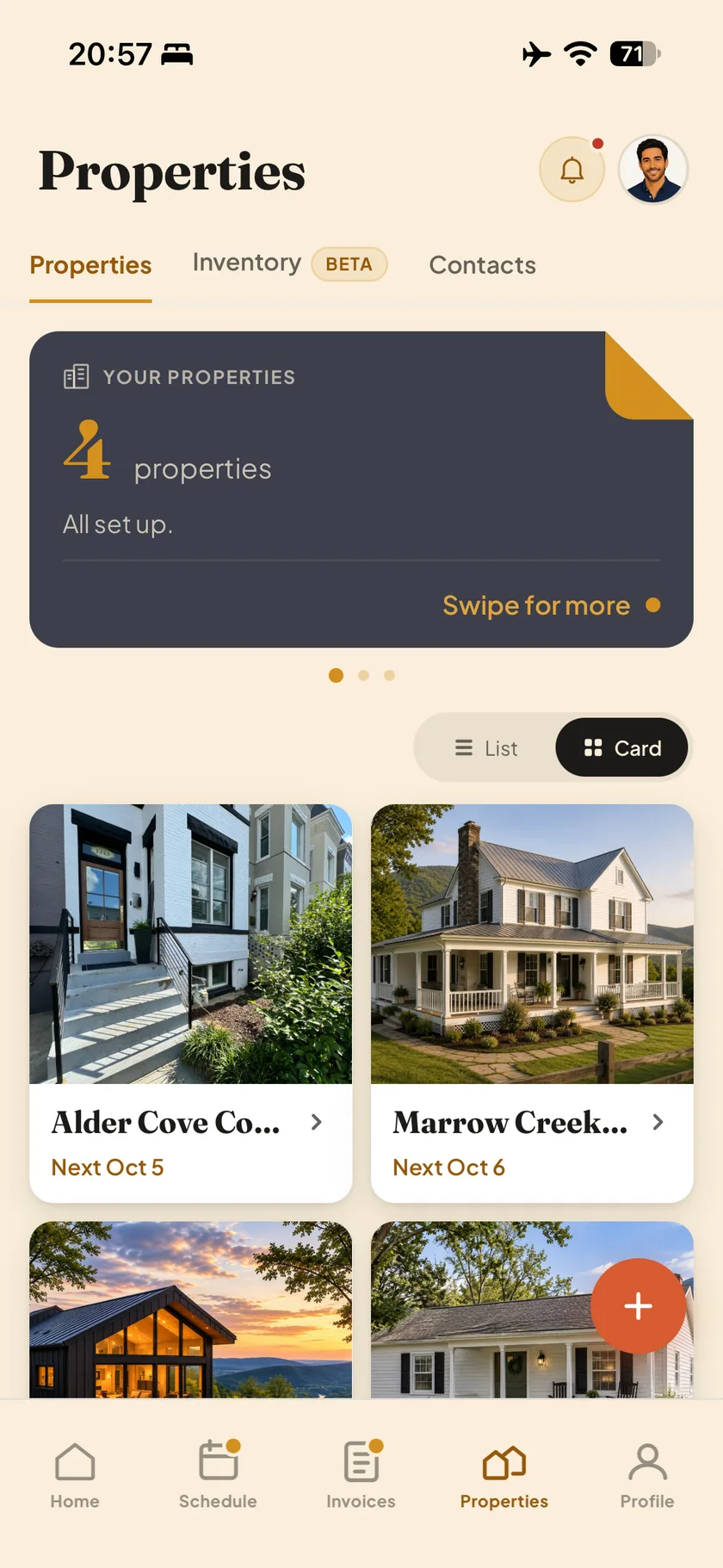
Tap Properties on the bottom navigation, then select the property you want to update.
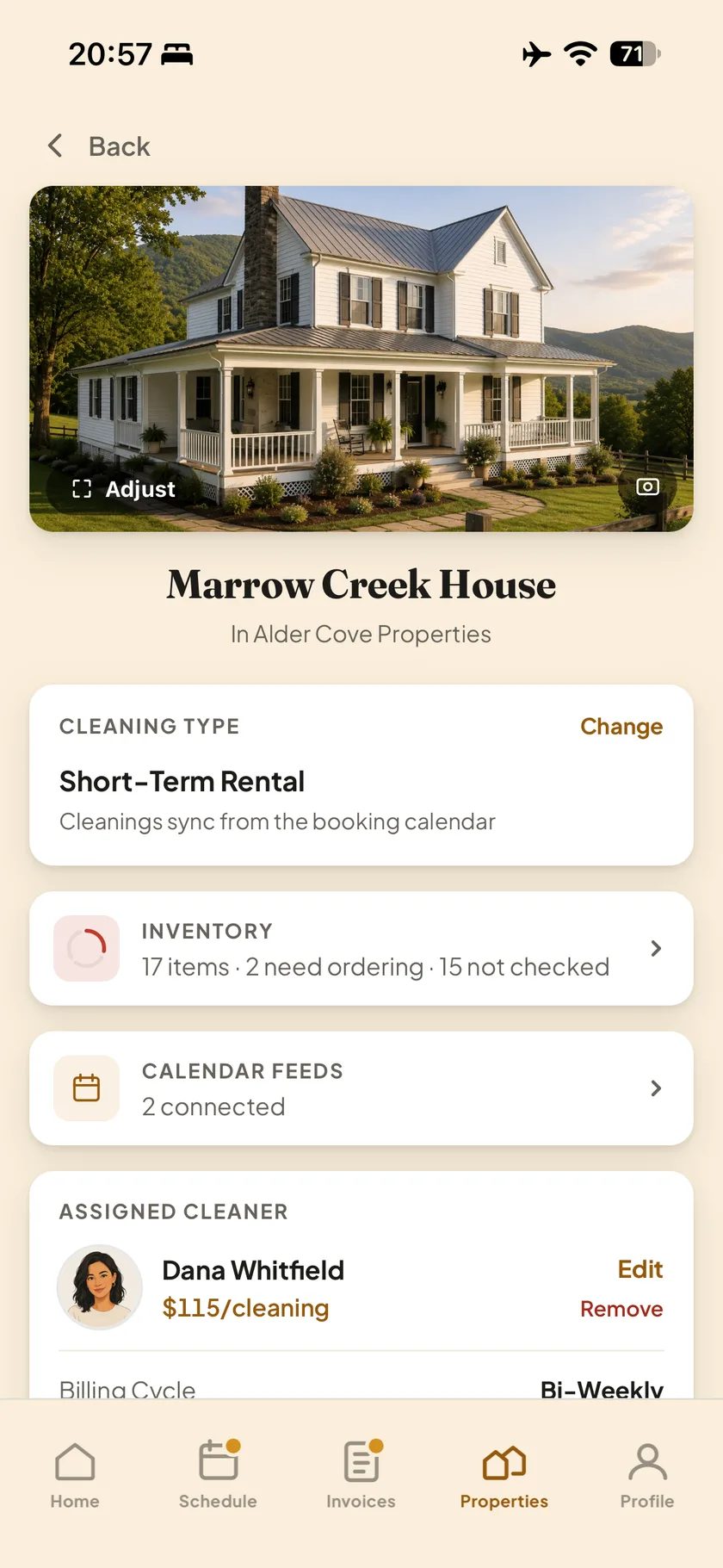
Tap Calendar Feeds .
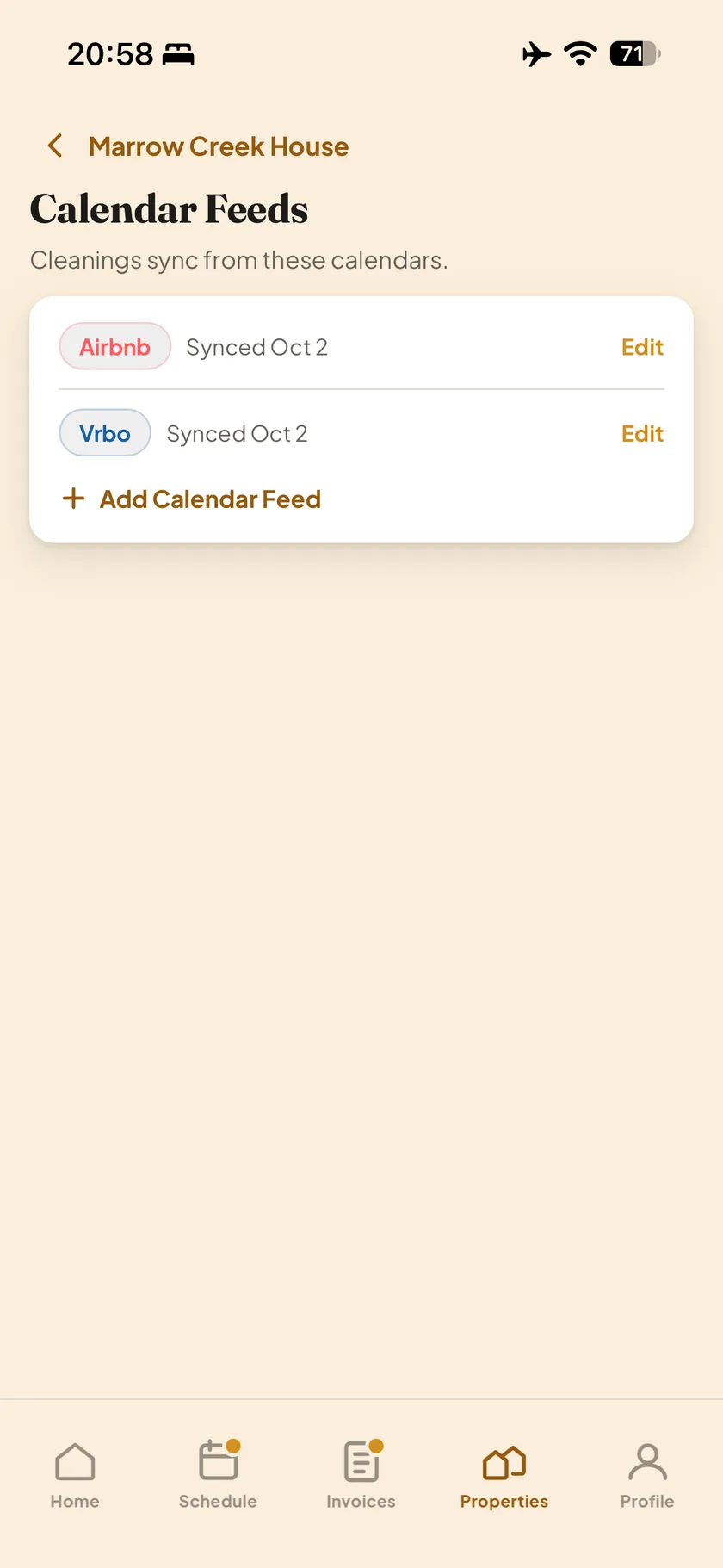
Tap Edit to replace a link, or Add Calendar Feed to add one.
See all 3 steps
- Tap Properties on the bottom navigation, then select the property you want to update.
- Tap Calendar Feeds .
- Tap Edit to replace a link, or Add Calendar Feed to add one.
One property can have more than one feed, for example Airbnb, Vrbo and Booking.com.
Once your calendar feed is added, pop over to Schedule to see your bookings. If you're a cleaner, take a look at Invoices: they're built from each checkout.