Mark a House Clean
One tap tells your host the cleaning is done. Add a note or photos if you want, then decide whether to send them.
Find Today's Job
Home shows today's cleaning as soon as you open the app. Or open Schedule and tap Upcoming: today's job is the first card there too. This works the same for a scheduled short-term rental and for a regular home with dates you agreed with the homeowner.
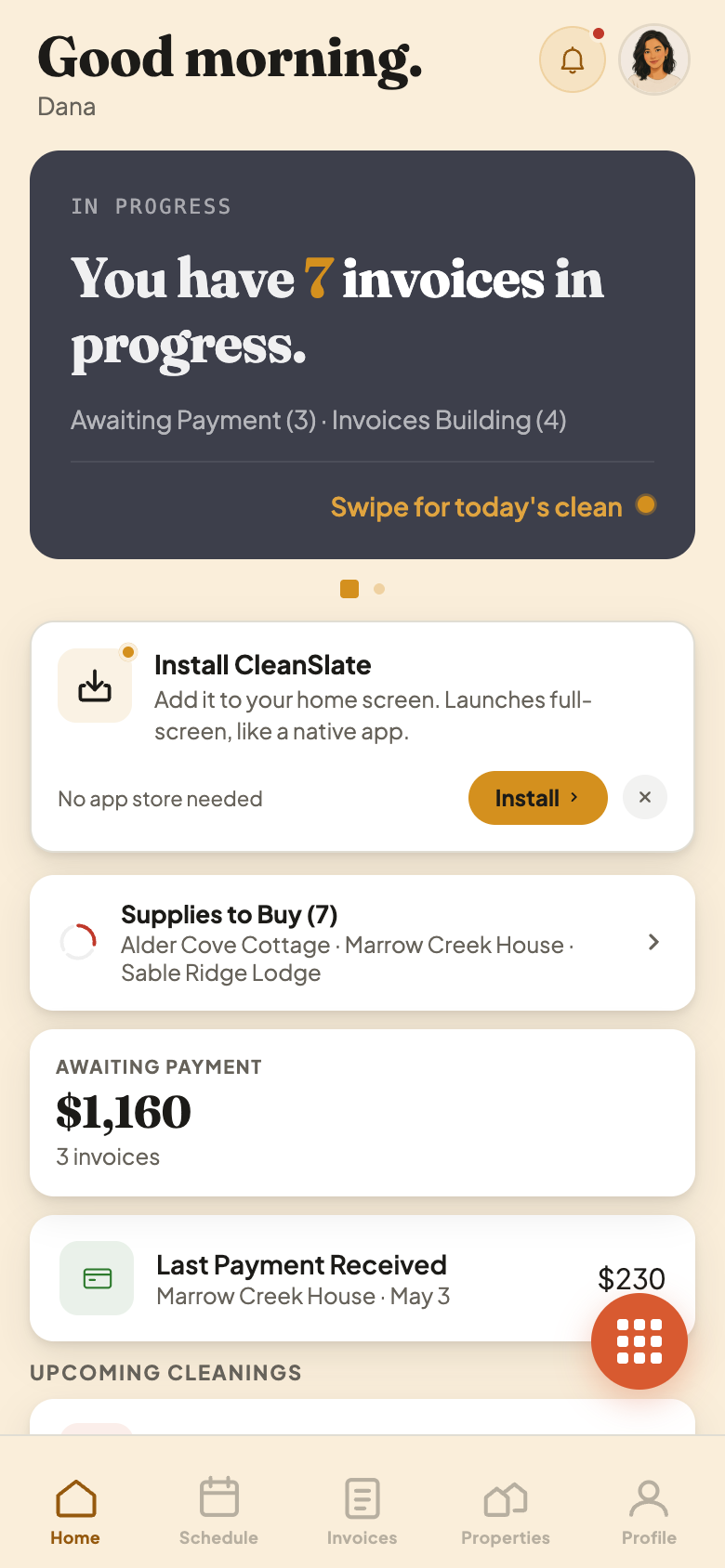
Tap the Circle When You're Done
Today's card has a circle in the corner. Tap it and the house is marked clean right away. Your host and homeowner are told the moment you tap, before you add anything else.
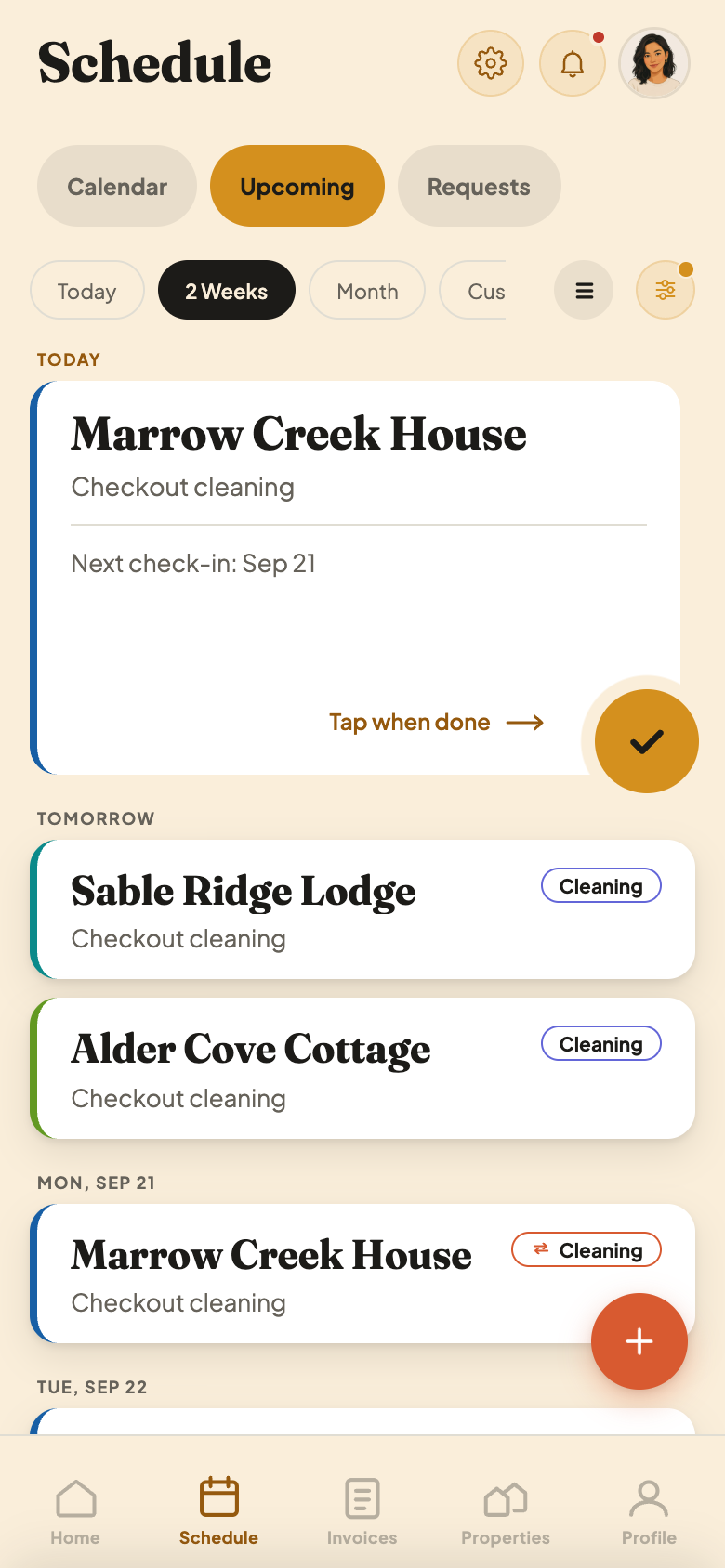
Reading Today's Card
- 1Tap the circle to mark the cleaning done. Nothing else on the card needs filling in first.
- 2No circle on a future day. You can only mark a day once it arrives.
A day that already passed still shows its circle, so you can mark a cleaning you forgot to tap at the time.
Add a Note or Photos, or Just Close
Right after you tap, a sheet opens asking Any notes to share with the host? Type a note or add up to two photos if you want. Tap Send to Host (or Send to Homeowner, or both, whichever applies) to tell them. Or just close the sheet: your note is saved and no one is bothered. You can come back and edit it, or send it later, for two days after you mark the day clean.
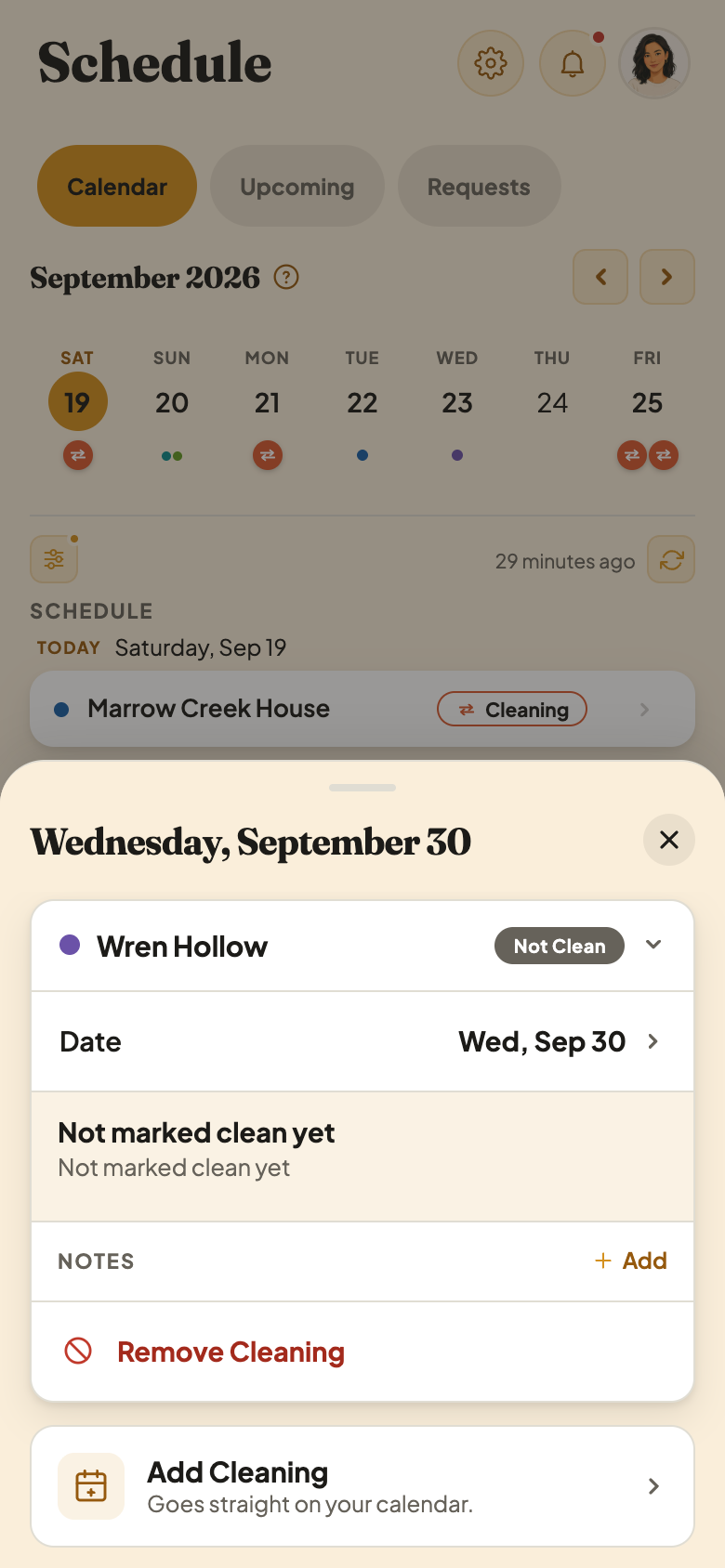
Open Any Day From Schedule
Tap any day on Schedule to open it the same way. A day that hasn't happened yet shows no circle and says Not marked clean yet instead: wait for the day to arrive. Changed your mind after tapping? Open the day and tap Undo Mark as Clean. Your host and homeowner are told the cleaning isn't done after all.
Marking a house clean never touches your invoice. It's a separate, one-tap way to tell your host the work is done.