Create a Rate Sheet
Price your extras once, and every invoice that uses them prices itself.
Find the Rates Tab
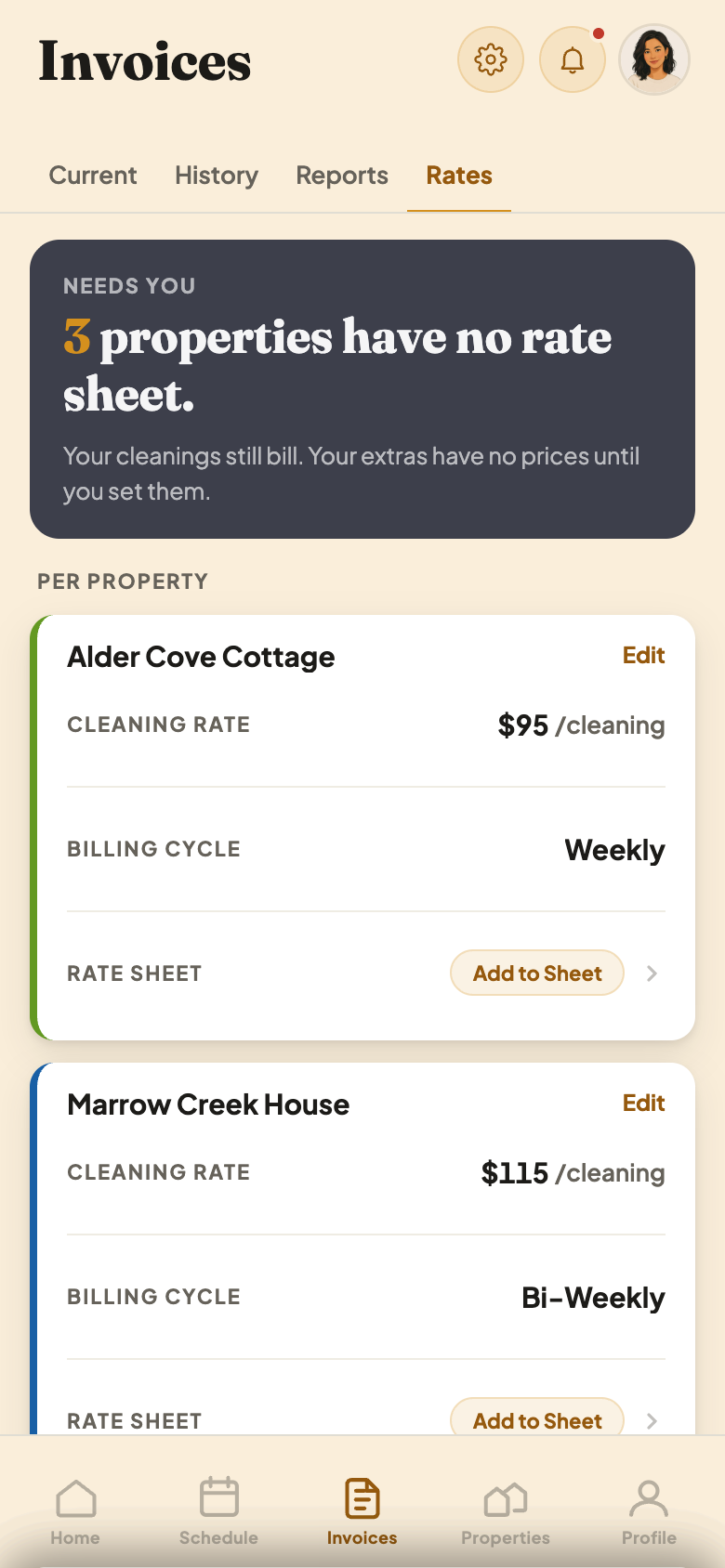
Open Invoices and tap Rates. Each of your properties shows its cleaning rate, its billing cycle, and whether a rate sheet is attached.
Reading a Property's Row
- 1Cleaning rate. Set here, per property. It is separate from your rate sheet.
- 2Rate sheet. Tap to attach one, or open the sheet already attached.
Start From a Sheet That Already Has Prices
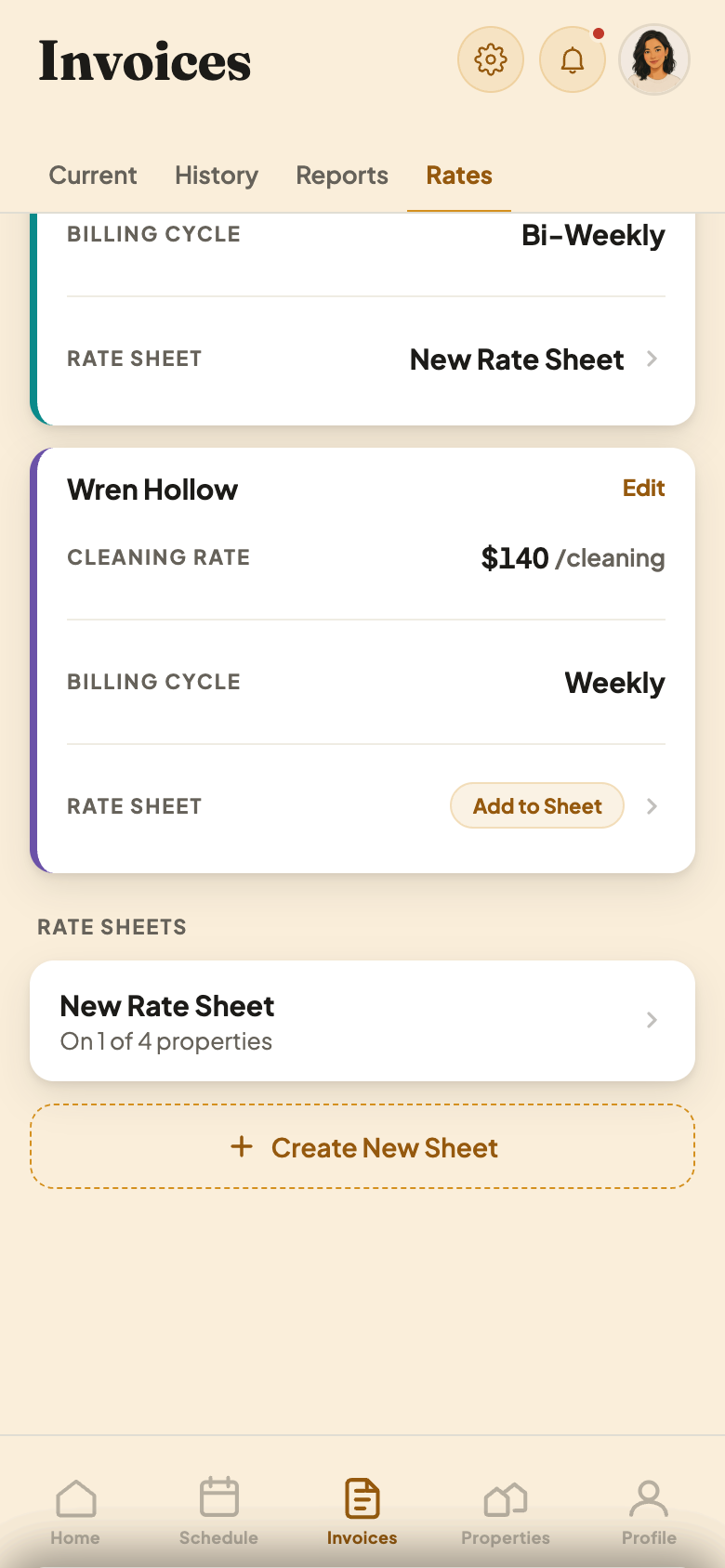
Scroll down to Rate Sheets and tap Create New Sheet. It comes pre-filled with common extras at typical prices, never a blank form. Each property can carry only one rate sheet at a time, so there is never a question of which prices apply.
Add Your Own Items, Remove Ours
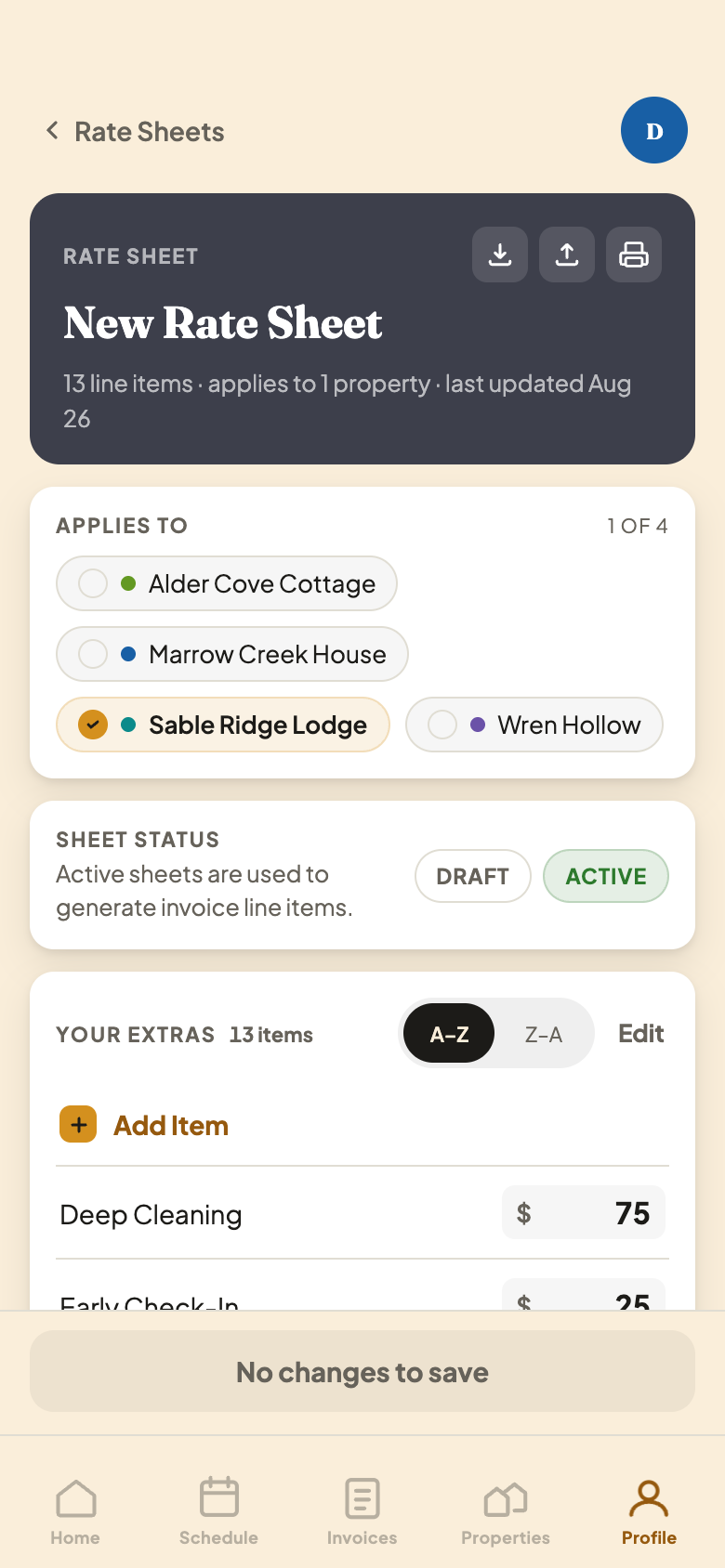
Open a sheet to see its prices. Change any amount, add items of your own, and remove any you don't offer. Choose which properties it applies to, then switch it from Draft to Active so its prices start showing on your invoices.
Reading a Rate Sheet
- 1Applies To. Turn a property on to price its invoices from this sheet, and only this sheet.
- 2Sheet Status. Draft prices nothing yet. Switch to Active when you want it live.
- 3Add Item. Price something of your own that our starting list left out.
Change a price later and every future invoice picks it up. Your host may ask why, so you can notify them from the sheet when you save.